DocsModels
Import a GGUF file
You already have a GGUF file on the phone. tensai can use it as it is.
Import a file
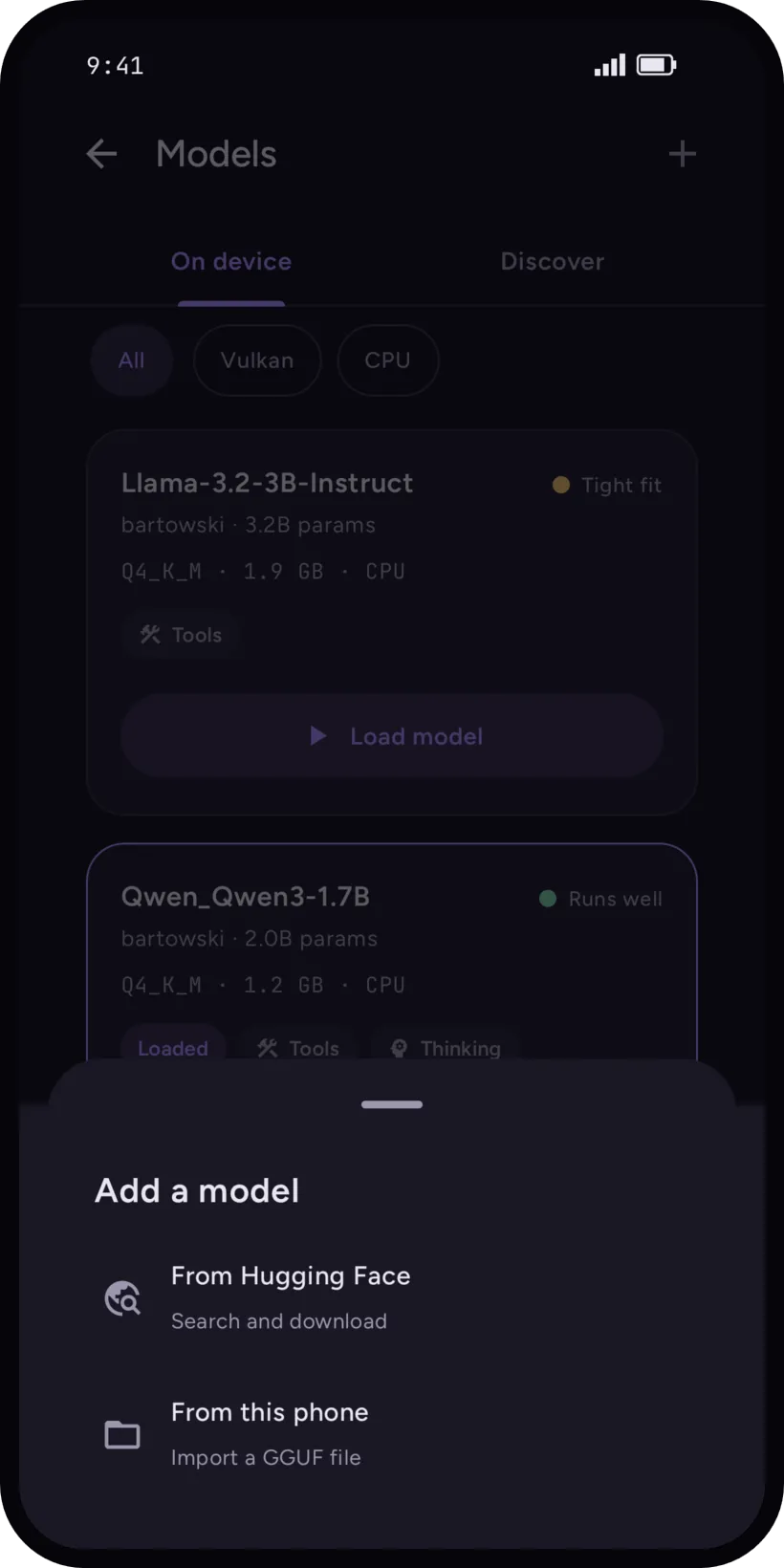
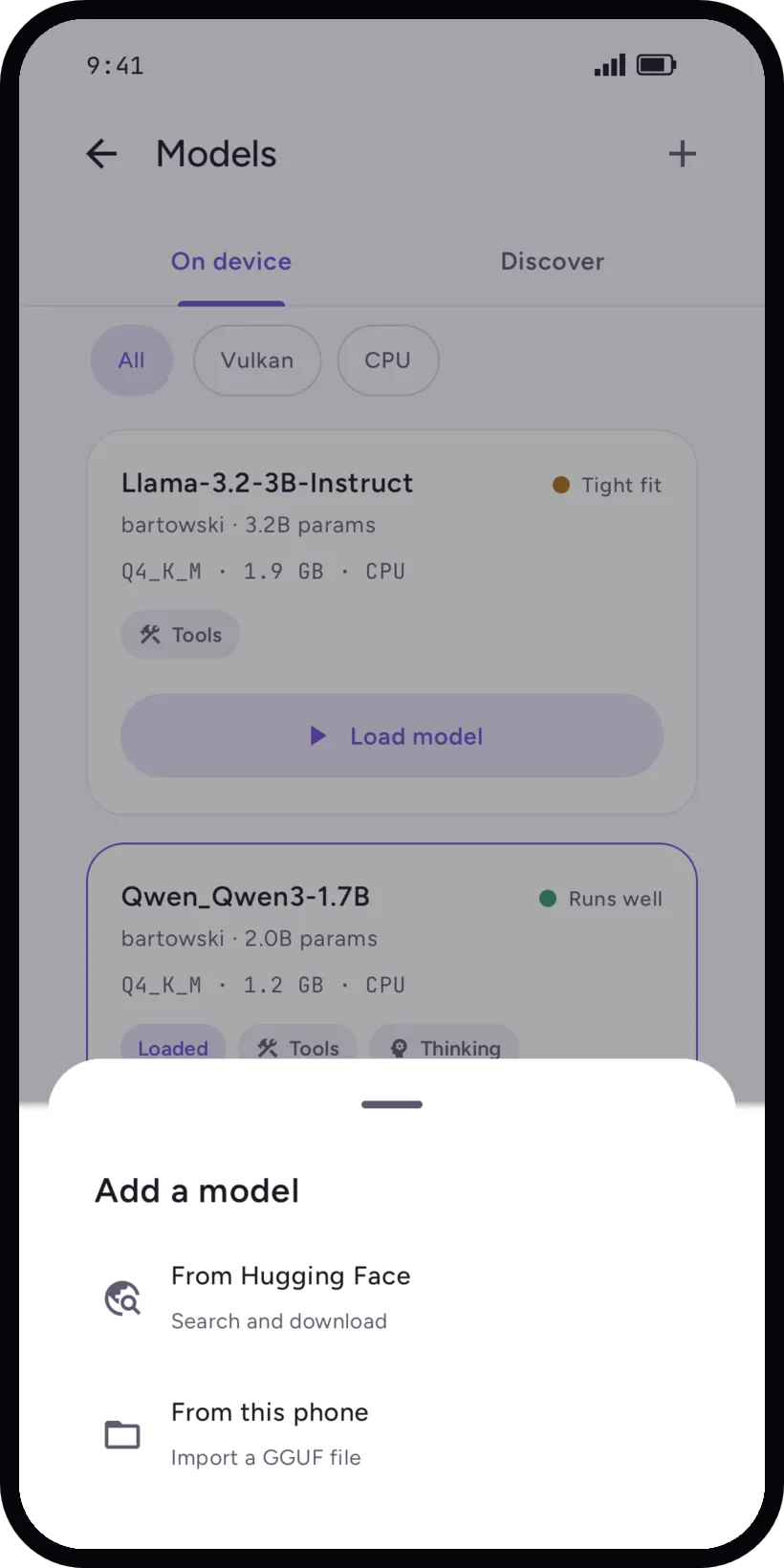
- Open Models, then Add a model, then From this phone: Import a GGUF file. On first launch the same button sits under the recommended model.
- Pick the file.
- Wait for the copy. The screen shows how much of the file is copied.
tensai copies the file into its own storage: the original stays where it was, and you need room for a second copy. It then reads the details of the model (architecture, parameters, quantization, context length) and adds it to Models, On device, with its fit verdict.
When it does not work
A failed import keeps nothing. The card says Import didn't finish, with one of these reasons:
- The file is already in your models.
- The file needs more space than is free: the card gives both sizes, and you can remove a model and try again.
- The file is not a GGUF model file, or the copy came out damaged.
- The copy stopped before it finished, and nothing was kept.
A model can also fail later, at load: Not supported means this build of the engine does not know the architecture yet. See the fit check.
Chat template
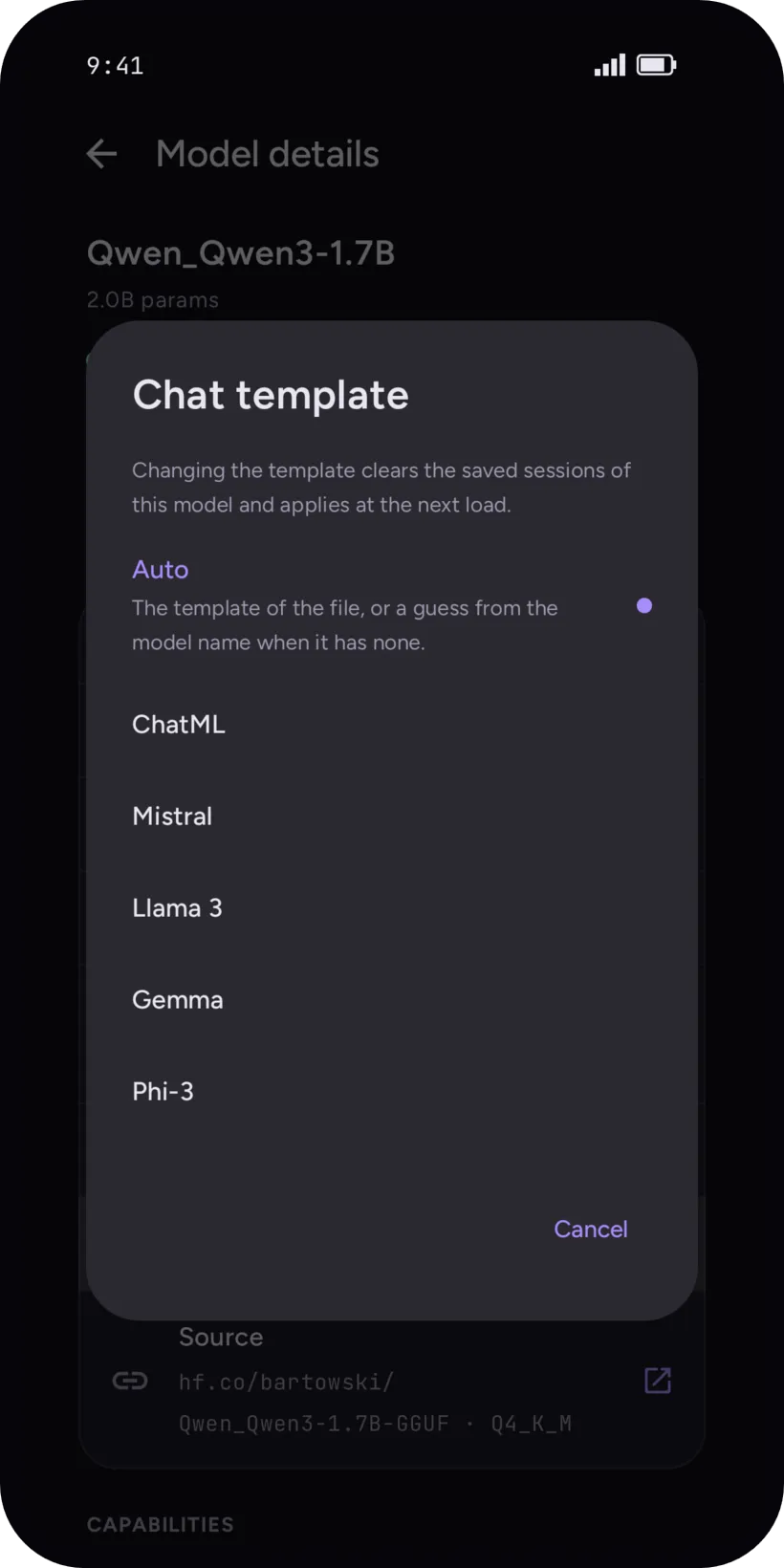
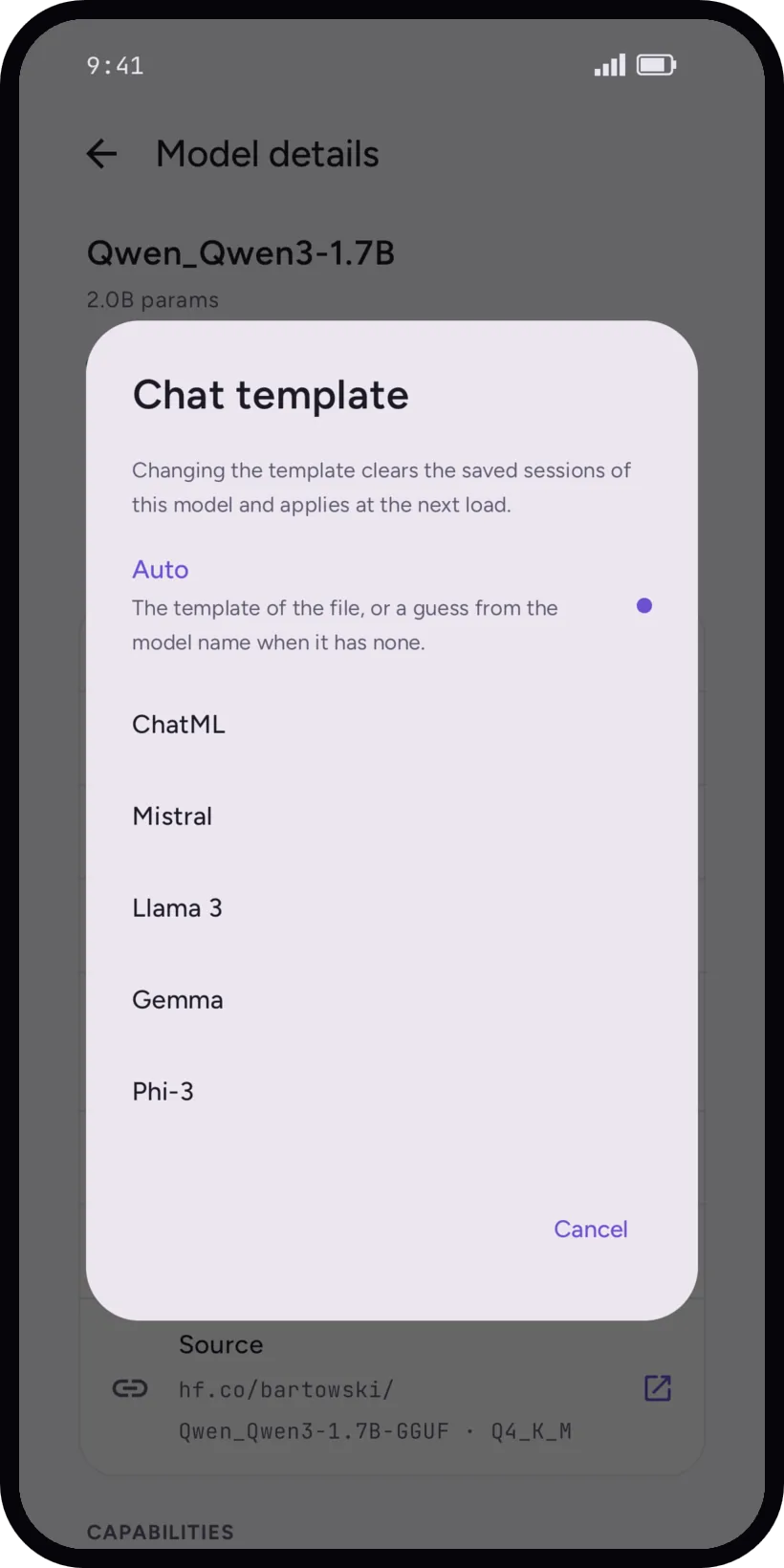
A model needs its chat template to know where a message starts and ends. By default tensai uses the template stored in the file, or guesses one from the model's name when the file has none.
If the guess is wrong, set it by hand in the model's details: ChatML, Mistral, Llama 3, Gemma or Phi-3. Changing the template clears the saved sessions of that model and applies at the next load.
Tools are only offered to models whose template supports them. See Tools and permissions.
Re-import and delete
If the file goes missing, the model's page says so and offers Re-import. Delete model removes the file from your phone, and it cannot be undone. A loaded model cannot be deleted: unload it first.
No file yet? Download one from Hugging Face.