DocsModels
Download from Hugging Face
tensai searches Hugging Face and downloads models itself. No account on tensai's side, an optional token on yours.
Search and discover
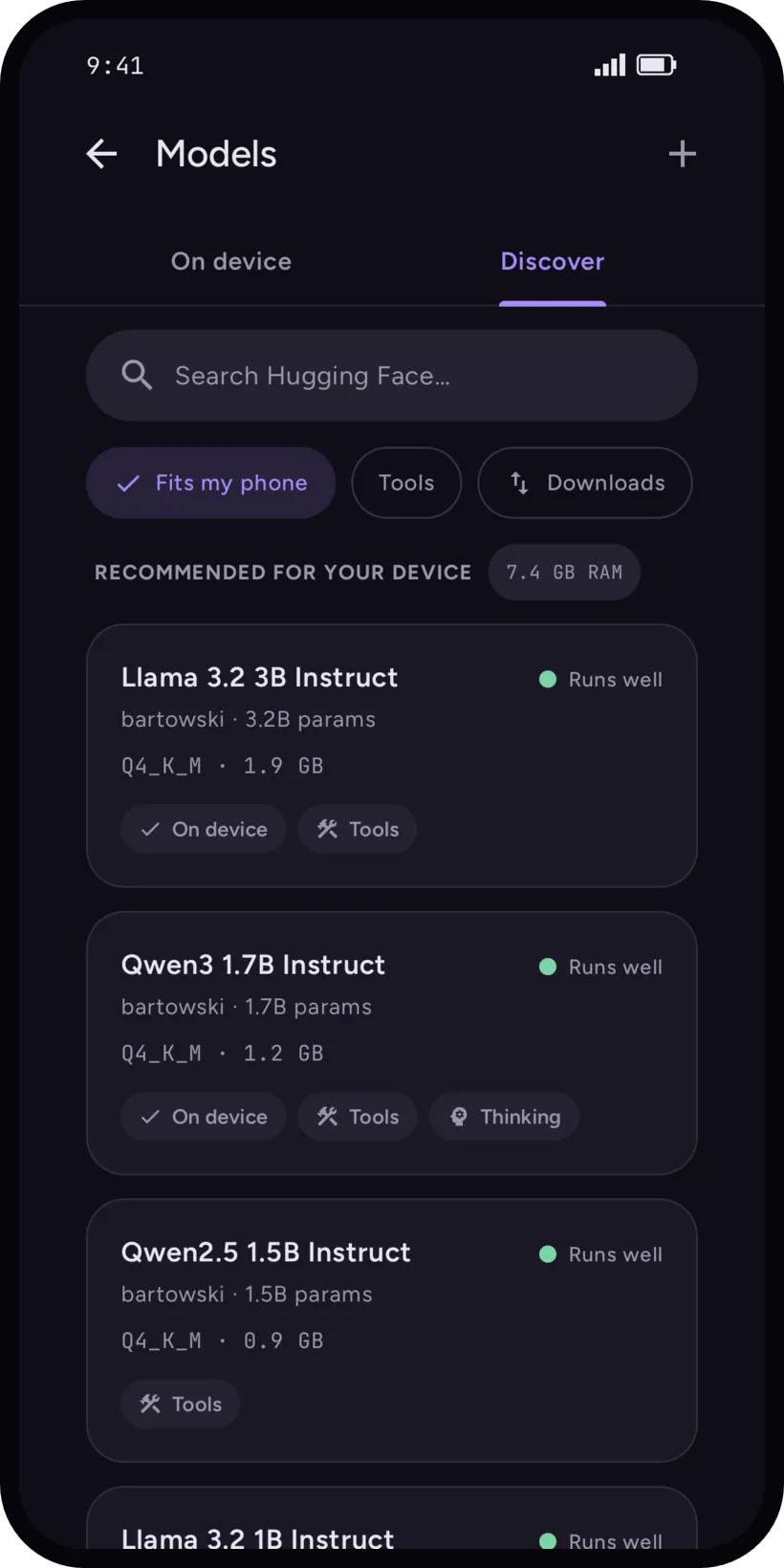
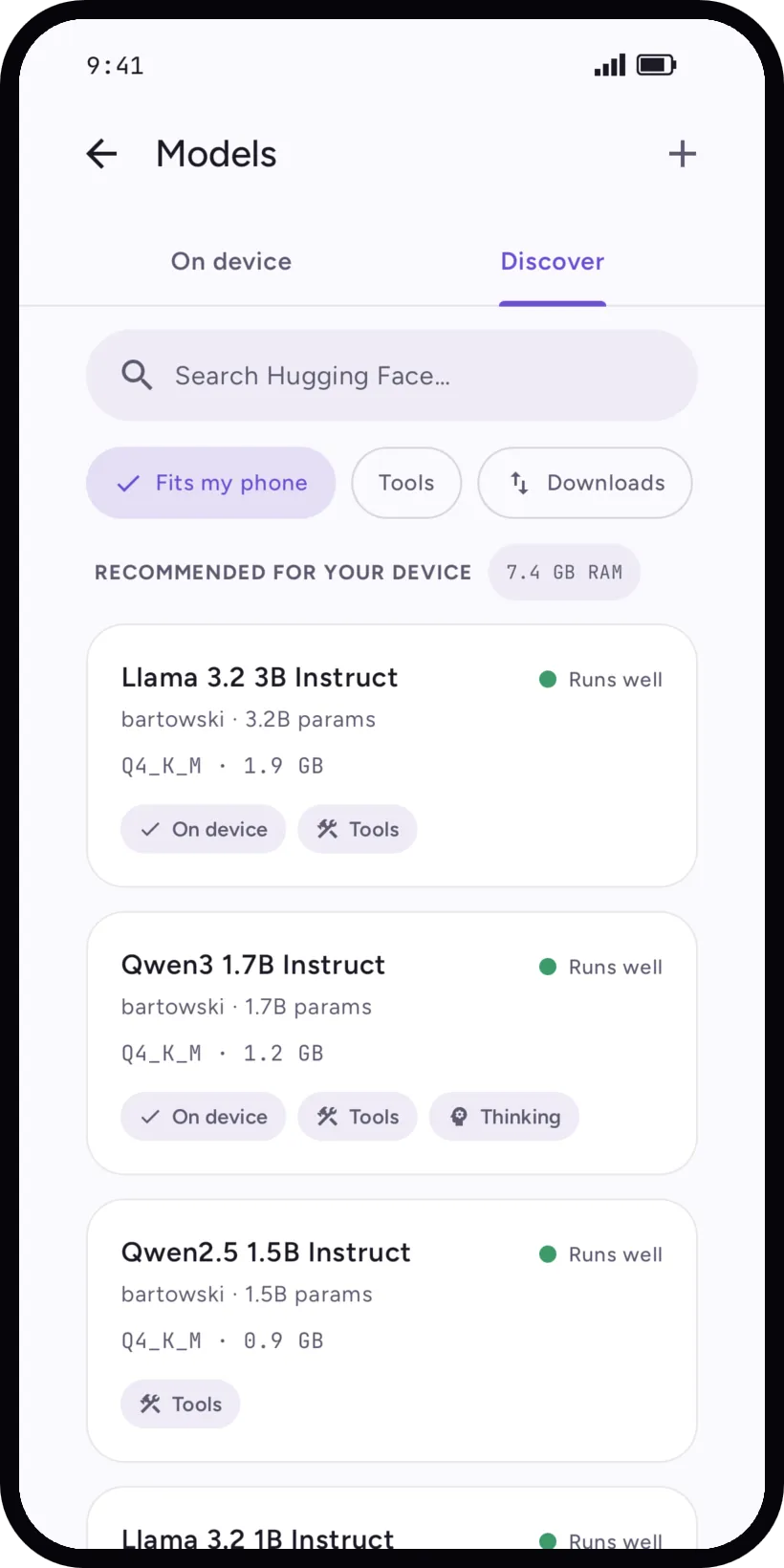
Models, then the Discover tab. It opens on Recommended for your device, then Popular on Hugging Face. Search by name, or paste the link of a repo or of a file: only Hugging Face links are accepted.
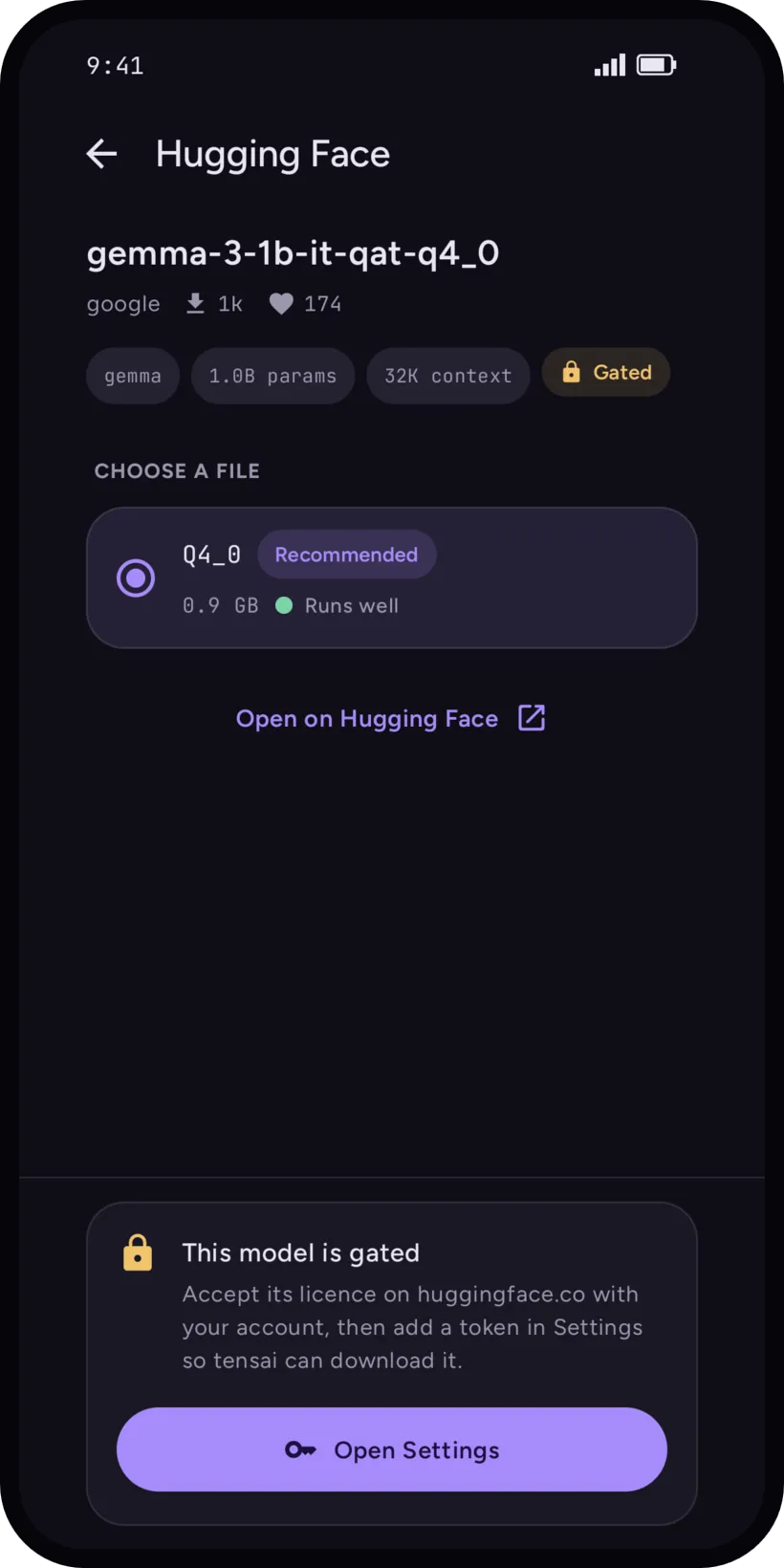
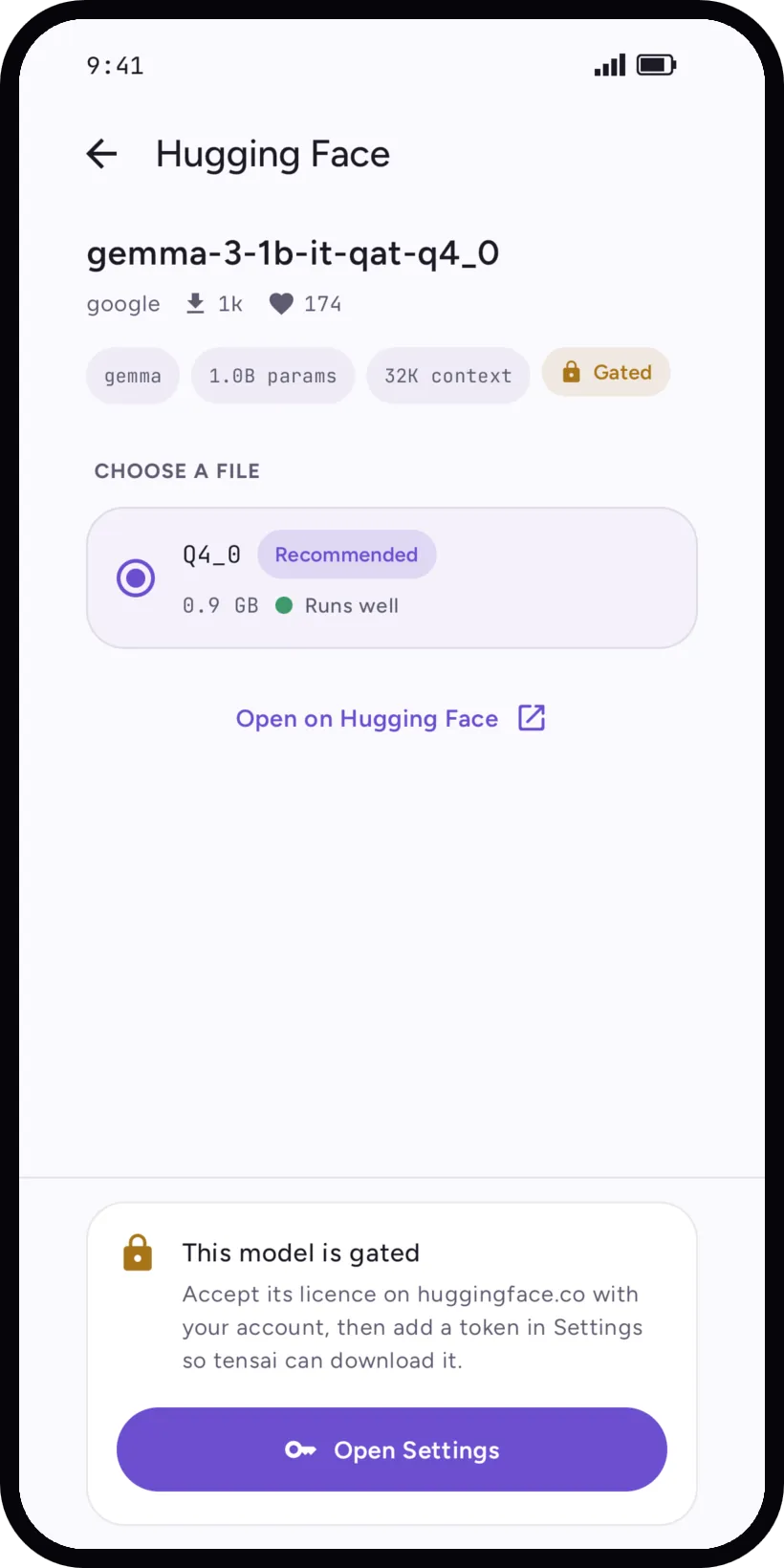
Filter with Fits my phone, and sort by downloads, likes, recent or size. The badges tell what a model offers: Tools, Thinking, Vision, and Gated when it needs a licence.
Choose a file
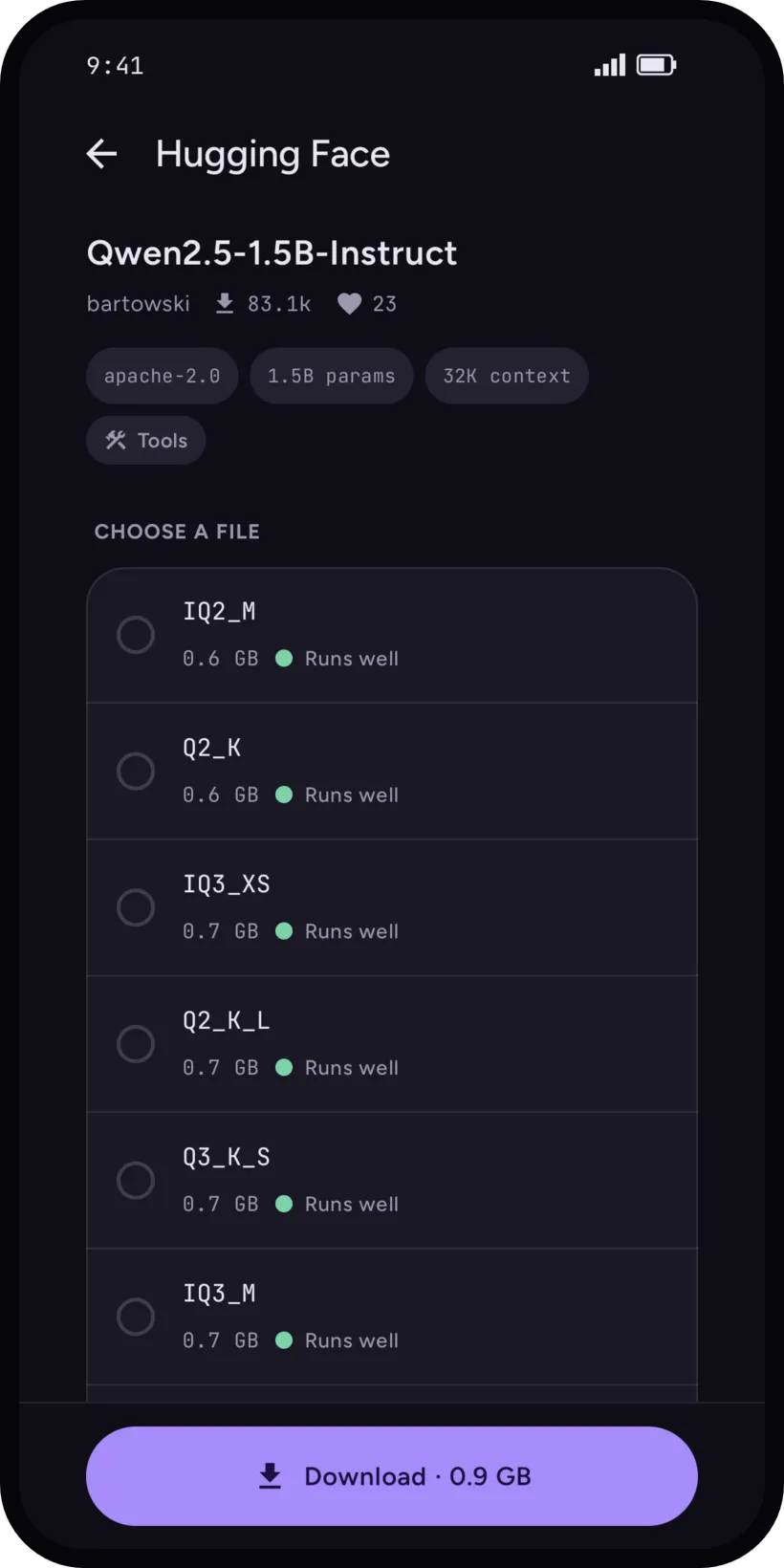
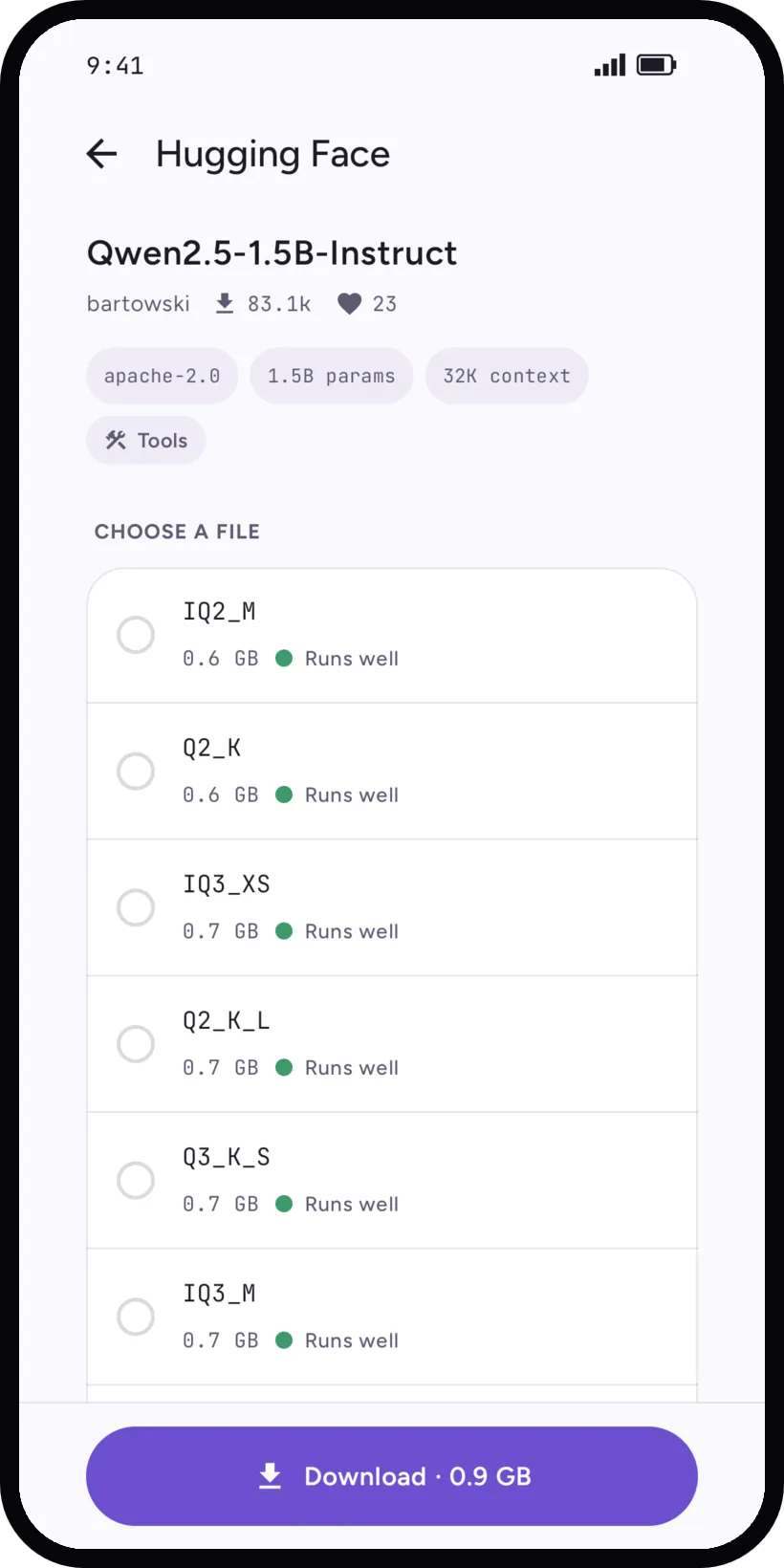
A repo page lists the GGUF files a phone can load, each with its fit, and marks the Recommended one. The readme is there too. Download shows the size before you tap.
Downloads
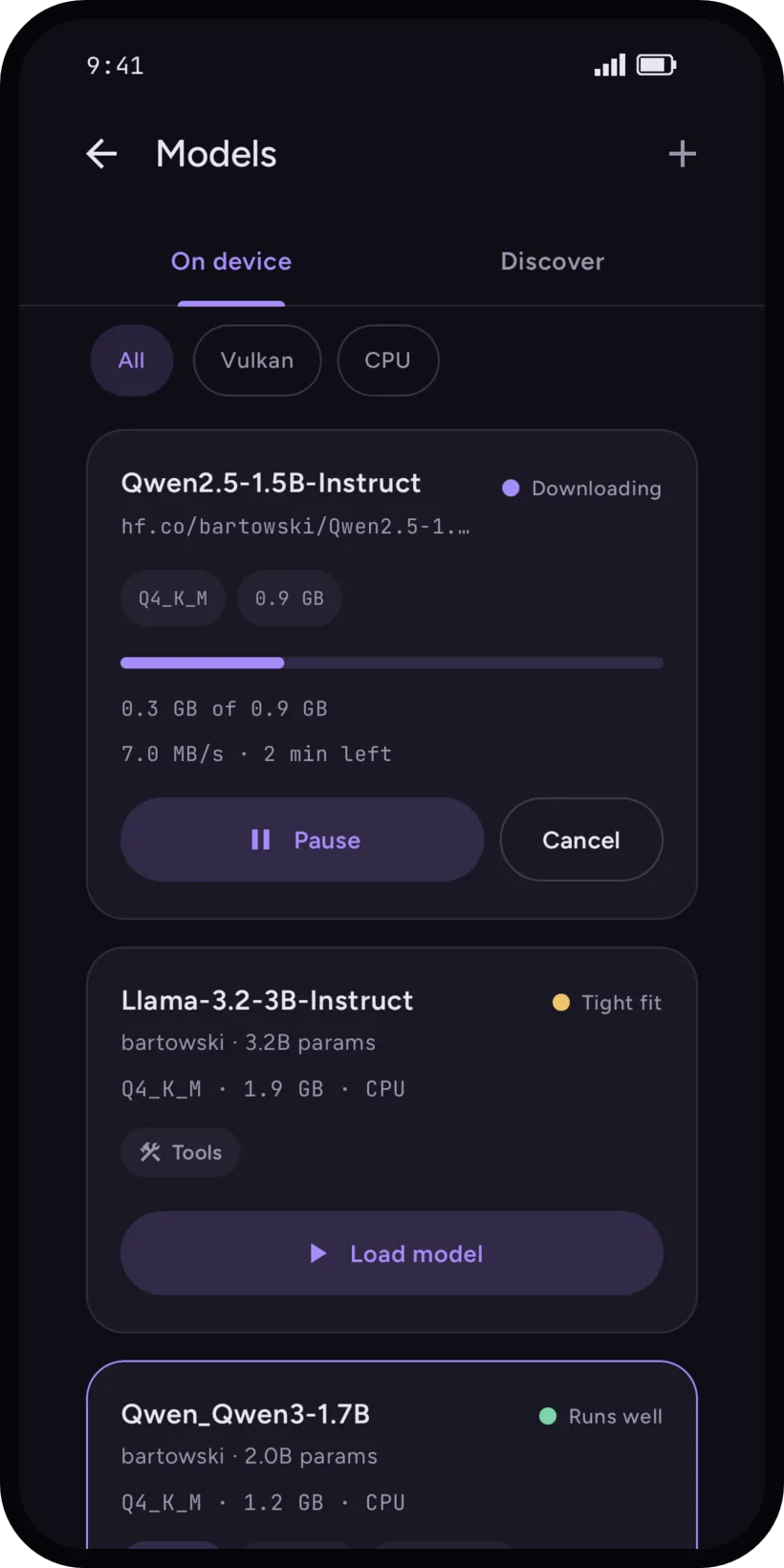
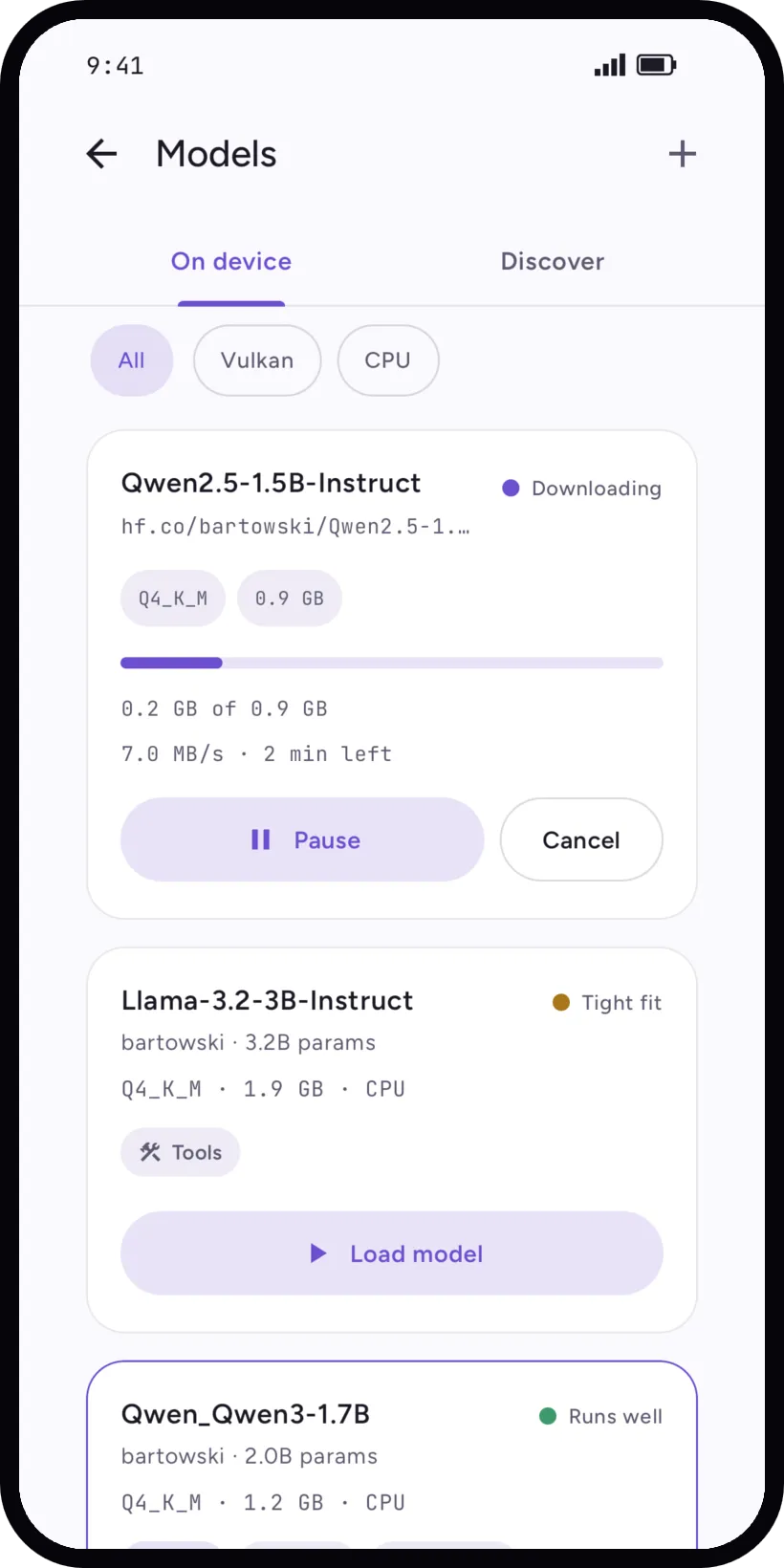
- Downloads run in the background and show their progress in a notification, with Pause and Cancel.
- Several downloads queue up. A paused or interrupted one resumes where it stopped.
- On mobile data tensai asks first. Settings, Downloads, Download on mobile data lets you allow it for good.
- A file that does not match the expected size or checksum fails instead of being added.
- When it is done, the model is in Models, On device, ready to load.
Gated models and the token
Some models are gated: you accept their licence on the Hugging Face site, with your account. tensai cannot do that for you.
- Accept the licence on the model's Hugging Face page.
- Create a read token in your Hugging Face account settings.
- In tensai: Settings, Downloads, Hugging Face token. Paste it and save.
The token stays on the phone. tensai checks it when you save it; with no connection it says Token saved, but it could not be checked. If Hugging Face refuses it, replace it, or remove it to keep downloading public models.
What leaves the phone
Searching and downloading send requests to Hugging Face, which sees your IP address and, if you added one, your token. Nothing else goes out. See Privacy.